

Designing in Card Studio
This page helps you design a business card, postcard, door hanger or flyer in Card Studio, from picking a template to sending the print file to your printer.
Card Studio is the full design editor in Print & QR. It opens full screen. Admins and Members can both design; only Admins can email a proof or send to the printer.
Start a card
Section titled “Start a card”- Open your site’s Print & QR page.
- Under Make something to print, choose Card Studio.
- Under What are you making?, pick Business card, Postcard, Door hanger or Flyer. For a postcard, also pick Landscape 6 × 4 or Portrait 4 × 6.
- Card Studio asks whose it is (Whose card is this? for a business card, Whose postcard is this? and so on for the others). Choose Mine or Someone on our team.
Mine starts from a template filled in with your name, your site’s brand kit (logo, colours and font, if the site has one) and your website. A business card is called “Business card”; a postcard, door hanger or flyer is named after its format, for example “Postcard”.
Your brand kit is set up for you. To change the logo, colours or font in it, ask us at support@webfacemedia.com.
Someone on our team asks for the person’s Name. Job title, Email and Phone are optional. Choose Start their card. The card uses the same brand kit and business details, with that person’s name, title, email and phone, and is named after them, for example “Sam Lee: business card” or “Sam Lee: postcard”. In the Brand panel their details show under their name; they belong to this card only.
Every part is editable. To rename it, click the name at the top left and type.
Card Studio saves as you work. The top bar shows Saving… and then Saved. To go back, choose Print & QR at the top left. Your work is waiting in Your cards and print pieces, with its format next to it, for example “Card Studio · Postcard”.
You can also open a quick card or uploaded artwork in Card Studio (the Card Studio button in Your cards and print pieces, or Open in Card Studio on a quick card). Card Studio makes a converted copy where everything is a layer you can move. The original still opens where it was made.
The screen
Section titled “The screen”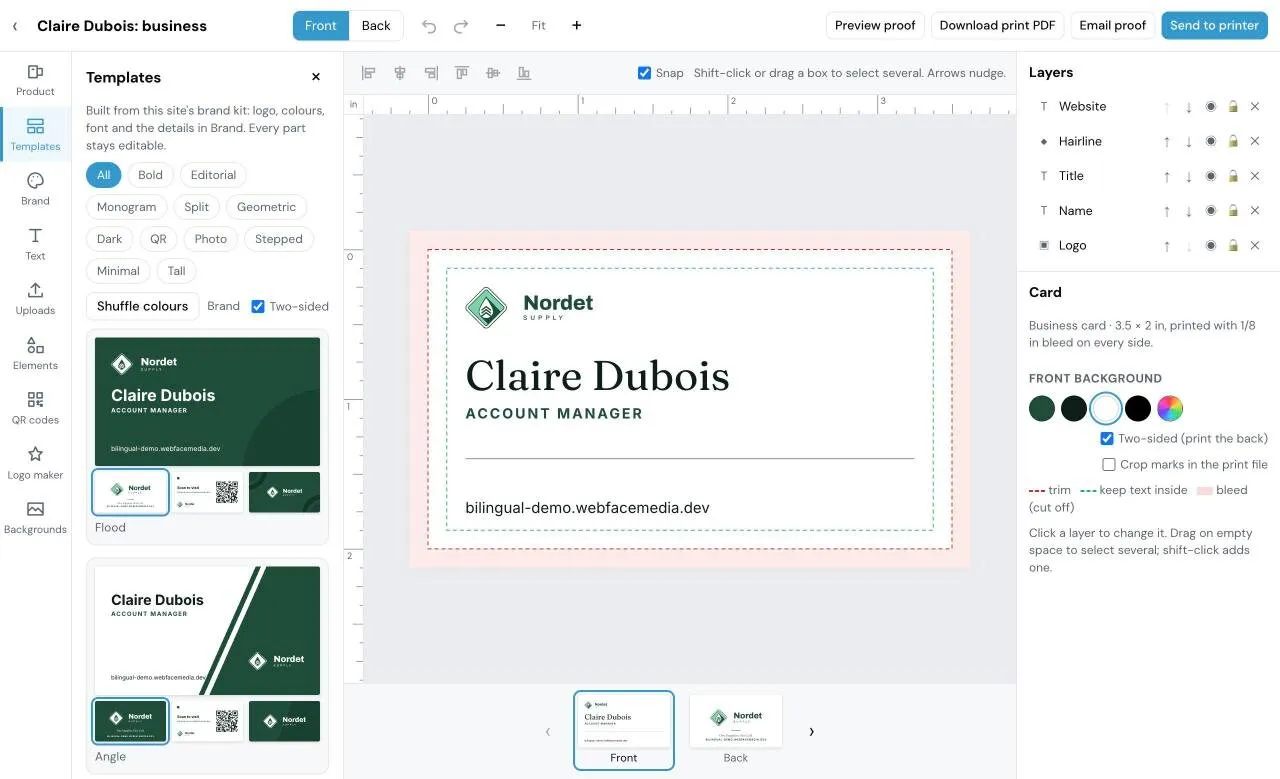
- Top bar: the card name, Front and Back, undo and redo, zoom (−, Fit, +), and Preview proof, Download print PDF, Email proof and Send to printer.
- Left rail: Product, Templates, Brand, Text, Uploads, Elements, QR codes, Logo maker and Backgrounds. Choose one to open its panel; choose it again (or ×) to close it.
- Middle: the card, with rulers in inches and the alignment buttons and Snap above it. The front and back thumbnails sit underneath.
- Right: Layers, and the properties of what you selected. With nothing selected it shows the Card settings.
Product
Section titled “Product”Open Product to see or change what you are printing. It has the same choice as the start step: Business card, Postcard (landscape or portrait), Door hanger or Flyer. Changing it starts the new size from its default template, with your brand and details. Undo brings the old one back.
The panel also has:
- Print the back (Double-sided on a flyer).
- Mail panel on the back (landscape postcards only). See The mail panel.
- Crop marks in the print file.
Templates
Section titled “Templates”The templates follow the format you are making.
| Format | Templates |
|---|---|
| Business card | 30, in 11 styles (below) |
| Postcard | 6: Flood, Split, Editorial, Photo, Angle and Dark |
| Door hanger | 5: Colour top, Clean, Photo, Bold and Dark |
| Flyer | 4: Colour hero, Editorial, Photo and Bold type |
For business cards there are 30 templates in 11 styles: Bold, Editorial, Monogram, Split, Geometric, Dark, QR, Photo, Stepped, Minimal and Tall (portrait cards).
- Open Templates and pick a style, or leave it on All.
- Choose Shuffle colours to see the templates in your brand colour, a deeper shade of it, or black.
- Leave Two-sided ticked to print a back. Each template has three backs to pick from, for example your logo on colour, a QR code, or big initials.
- Click a template’s front to use it, or click one of its backs to use it with that back.
Using a template replaces both sides of the card. If you change your mind, undo brings the old card back.
Postcard, door hanger and flyer templates work the same way. Their backs are Details on white or Details on colour, and landscape postcards also have Mail panel. They use the words you enter in Brand (see The other panels); after you change the words, pick a template again to lay them out.
The Photo templates need a photo. Upload one in Uploads, or make one in Backgrounds, and it appears in the template.
The other panels
Section titled “The other panels”- Brand: your brand kit, your brand colours, and Your details (name, title, business name, phone, email, website, address, tagline). Templates and the contact card QR use these details. Click a colour to colour the selected layer, or the background if nothing is selected.
- Initials: the letters the monogram templates use, up to 5 letters or numbers. It starts with your brand kit’s initials. Leave it empty (it shows Auto) to use your business name’s initials. A change is saved to the site’s brand kit, so it applies to everyone’s cards on this site.
- For a postcard, door hanger or flyer, Brand also has the piece’s words: Headline, Supporting line, Offer (shown in a pill), QR call to action (for example “Scan to book”) and Back: steps or points (one per line).
- Text: add a heading, subheading or body text; pick a font pair; upload fonts (.ttf or .otf).
- Uploads: upload images (JPG, PNG, SVG or PDF) and place them on the card. SVG and PDF stay sharp at any size.
- Elements: shapes to add: circle, square, rounded square, triangle, line, star and polygon.
- QR codes: see QR codes below.
- Logo maker: upload a logo. Every logo on the card gets a print check: Prints well, Check this or Won’t print well. Some sites also have a link to a logo maker here.
- Backgrounds: see Backgrounds below.
Editing basics
Section titled “Editing basics”- Select: click a layer on the card or in Layers. Shift-click to add or remove one, or drag a box on empty space to select several.
- Move and resize: drag the layer or its handles. Arrow keys nudge; Shift + arrow moves 1/8 in.
- Snap: layers snap to the card, the guides and each other while Snap is ticked. Hold Alt (Option on a Mac) while dragging to place freely.
- Align: the buttons above the card align one layer to the card, or several layers to each other (left, centre, right, top, middle, bottom).
- Undo and redo: the arrows in the top bar, or Ctrl/⌘ + Z and Shift + Ctrl/⌘ + Z.
- Other keys: Ctrl/⌘ + C, X and V copy, cut and paste; Ctrl/⌘ + D duplicates; Delete removes; Ctrl/⌘ + A selects everything on this side; Esc clears the selection.
- Front and back: switch with Front and Back at the top, or the thumbnails under the card.
Layers
Section titled “Layers”Layers lists everything on the current side, top layer first. For each layer you can:
- drag it up or down the list, or use the arrows, to bring it forward or send it back
- show or hide it
- lock it, so it can’t be moved by accident
- delete it
Properties
Section titled “Properties”Select a layer to change it on the right. You can rename it and set its position, size, rotation and opacity in inches. Text also has font, size, alignment, Letter spacing and colour. Shapes have fill and outline. Images have Restore the original proportions, and SVG images can be set to one flat colour.
Card Studio warns you when text is below 6 pt, a line is too thin to print, a QR code is smaller than 0.75 in, or an image may look soft in print.
The guide lines
Section titled “The guide lines”| Line | Meaning |
|---|---|
| Trim (red dashes) | Where the card is cut. |
| Keep text inside (green dashes) | Keep text and QR codes inside this line so nothing important is trimmed off. |
| Bleed (shaded) | The extra 1/8 in around the card that is cut off. Colours and backgrounds run into it so the edges have no white line. |
| Hatched red area | An area to keep clear: the door hanger’s hole zone, or a postcard’s mail panel. |
| Pink dashes (door hangers) | The die-cut: where the hole and slit are cut. It is not printed. |
QR codes
Section titled “QR codes”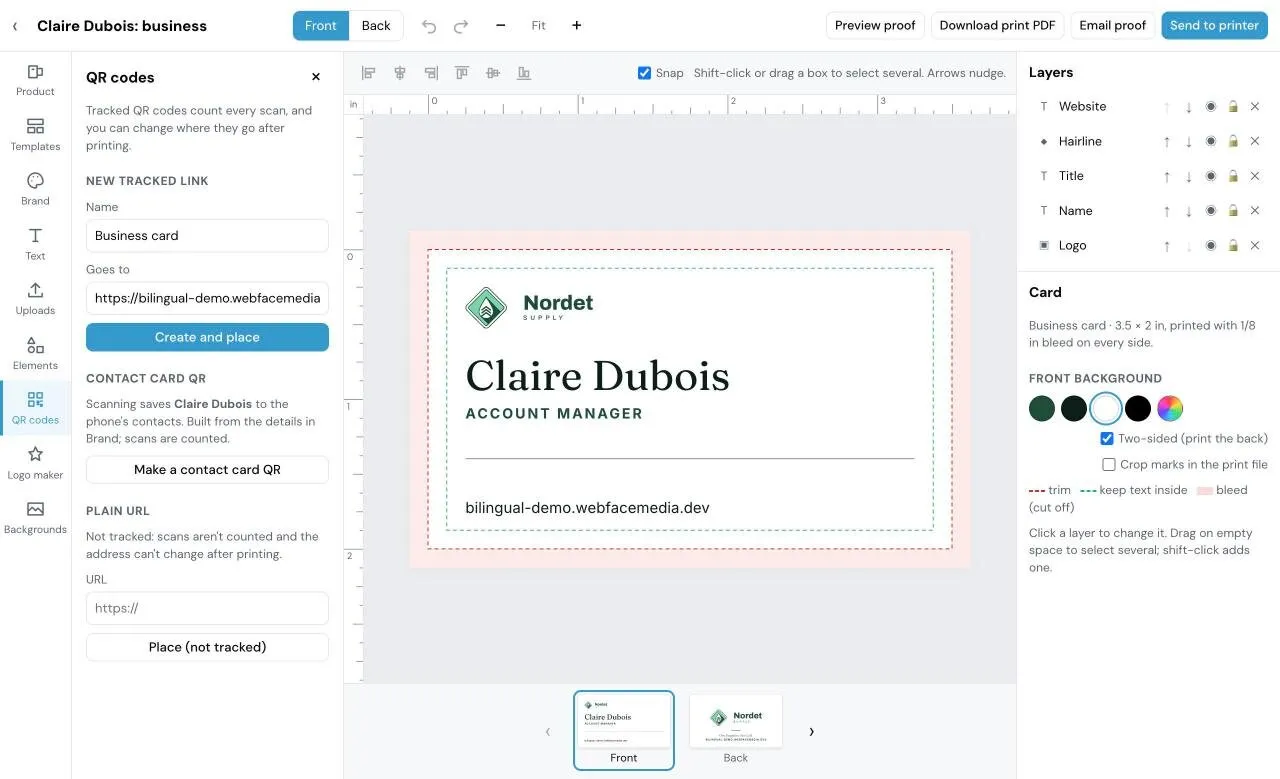
Open QR codes. You have three kinds:
- A tracked link: pick one of your QR codes from the list (it shows its scan count), or make a new one under New tracked link: enter a Name and where it Goes to, then choose Create and place. Tracked codes count every scan, and you can change where they go after printing.
- Contact card QR: choose Make a contact card QR. Scanning it saves the person to the phone’s contacts, using the details in Brand. Scans are counted. Add a name in Brand first.
- Plain URL: enter a web address and choose Place (not tracked). Scans aren’t counted and the address can’t change after printing.
To change the link on a QR code that is already on the card, select it and pick another link in the panel. In Properties you can set the code’s colour, the tile behind it and its size.
New tracked links also appear under QR codes on the Print & QR page, with their scans.
Backgrounds
Section titled “Backgrounds”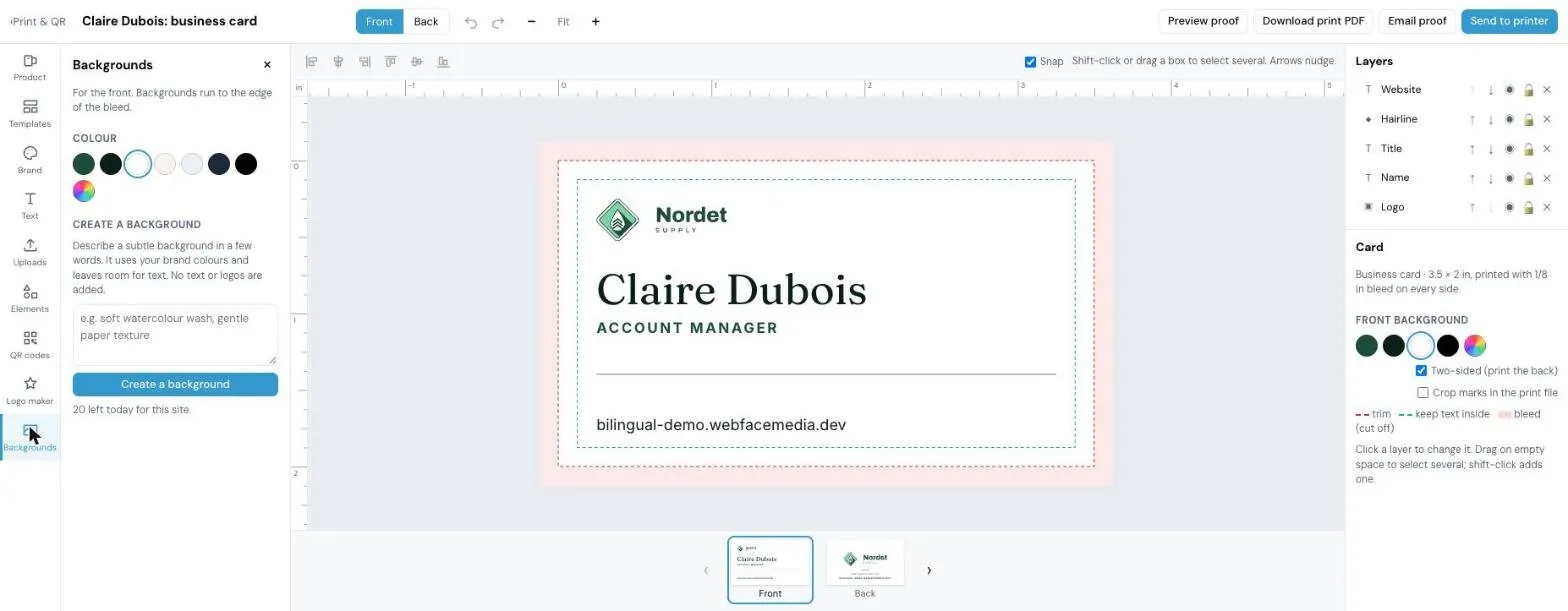
Open Backgrounds. It works on the side you are on (front or back). Backgrounds run to the edge of the bleed.
A created background is made in the shape of what you are printing: wide for a landscape postcard, tall for a door hanger, letter-shaped for a flyer.
- Colour: click a swatch: your brand colours, a few neutrals, or any colour you pick.
- Create a background: describe a subtle background in a few words, for example “soft watercolour wash”, and choose Create a background. It uses your brand colours, leaves room for text, and adds no text or logos. Each site can create 20 backgrounds a day; the panel shows how many are left.
- Your images: use one of your uploads as the background.
To take a background image off, choose Remove the background image.
Proof, approval and printer
Section titled “Proof, approval and printer”Preview proof
Section titled “Preview proof”Choose Preview proof to see both sides exactly as the printer will get them. From there you can Download print PDF or go Back to the card.
Get it approved
Section titled “Get it approved”- Choose Email proof.
- Under Get client approval, enter the client’s name and email.
- Check Your email. The answer comes there.
- Choose Email the proof. If you leave the client email blank, choose Make the proof link and send the link yourself.
The client gets a page with the exact print file. They enter their name, tick that they checked the names, numbers and spelling, and choose Approve for printing or Ask for changes with a comment. You get an email with their answer. Nothing is printed until you send it.
The card’s status in Your cards and print pieces moves to Proof sent, then Approved (or back to Designing if they asked for changes).
Members can make a proof link to share themselves. Only Admins can email it.
Send to printer
Section titled “Send to printer”Admins only.
- Choose Send to printer.
- Pick a saved printer, or choose A new printer… and enter the Printer name and Printer email.
- Fill in Quantity, Needed by (optional), Paper, Pickup or delivery and an optional message.
- Check your name and email. Replies from the printer come to you.
- Choose Send to printer.
The printer gets the PDF attached plus a download link, and you are copied. If the client has not approved the proof yet, you are asked to confirm first. The card’s status moves to Sent to press.
To add a printer without sending an order, enter its name and email and choose Save printer. It is then ready in the printer list.
If a send fails, the page says why, for example the printer’s address was rejected or the file is too large to attach, and offers Try again when trying later can help.
Postcards, door hangers and flyers
Section titled “Postcards, door hangers and flyers”Card Studio makes four kinds of print piece. Each one starts from your brand kit and your details, and works like a business card: templates, text, QR codes, proof and printer.
| Format | Size | Sides | Templates |
|---|---|---|---|
| Business card | 3.5 × 2 in, or 2 × 3.5 in (Tall templates) | Front and back | 30 |
| Postcard | 6 × 4 in landscape, or 4 × 6 in portrait | Front and back | 6 |
| Door hanger | 3.5 × 8.5 in | Front and back | 5 |
| Flyer | 8.5 × 11 in (letter) | One side, or double-sided | 4 |
Every format prints with 1/8 in bleed on every side. Keep text and QR codes inside the green line.
Postcards
Section titled “Postcards”A postcard works as a hand-out, a leave-behind or a mailer. Pick Landscape 6 × 4 or Portrait 4 × 6 when you start, or later in Product. Postcards start two-sided.
The mail panel
Section titled “The mail panel”To mail a postcard, it needs space on the back for the address and postage. On a landscape (6 × 4) postcard:
- Open Product and tick Mail panel on the back.
- In Templates, pick a back called Mail panel to lay it out.
The right half of the back is then kept clear. Card Studio shows it hatched and labelled “Mail panel: keep clear”, with dashed boxes for the Postage (top right) and the Address. If text, a QR code or a logo sits in the mail panel, Card Studio tells you to move it.
For a counter or hand-out postcard, leave the mail panel off. A portrait (4 × 6) postcard has no mail panel.
Before you mail, check the size and address rules with your printer or your postal service.
Door hangers
Section titled “Door hangers”A door hanger is a tall card with a round hole near the top, so it hangs on a door handle.
The hole is 1.25 in across, its centre 1 in below the top edge, with a slit from the hole to the side so it slips over the handle. In Card Studio:
- The hole and slit show as a pink dashed line. This is the cut line: it shows where the printer cuts. It is not printed.
- The band across the top, down to just below the hole, is shaded and labelled “Die-cut hole: keep clear”. Keep text, QR codes and logos out of it, or they would be cut through. Card Studio tells you if something is in it.
- Colours and backgrounds can run across the hole zone; only text, QR codes and logos have to stay out.
In the print file, the cut line is on a separate layer called “CutContour”, the name printers use for a cut line. The printer’s cutter follows it and the press leaves it out, so it never shows on the printed piece.
Flyers
Section titled “Flyers”A flyer is letter size (8.5 × 11 in). It starts one-sided. To print a back, tick Double-sided in Product or in Templates.
Printing tips
Section titled “Printing tips”- Ask your printer which paper or card stock they suggest for each piece.
- A door hanger needs die-cutting. Check that your printer offers it before you send the file, and tell them the cut line is on the CutContour layer.
- Use Preview proof to check both sides before you send anything.
- When you send to the printer, fill in Paper and Quantity so the printer knows what you want.
Print file details
Section titled “Print file details”- Sizes: see Postcards, door hangers and flyers.
- 1/8 in bleed on every side.
- Crop marks are optional. Tick Crop marks in the print file in Product, or under Card with nothing selected.
- Two-sided (print the back) under Card (Double-sided on a flyer), or Print the back in Product, decides whether the back is printed.
- Door hangers: the cut line is on a separate “CutContour” layer and is not printed.