

Print & QR
This page helps you find your way around Print & QR: starting a card or other print piece, following your work to the printer, making tracked QR codes, and the tools for logo checks and print history.
Print & QR is on each site in Insights. Admins and Members can both design cards and print pieces, check logos and make QR codes. Only Admins can send a card to the printer or email a proof (see Who can send).
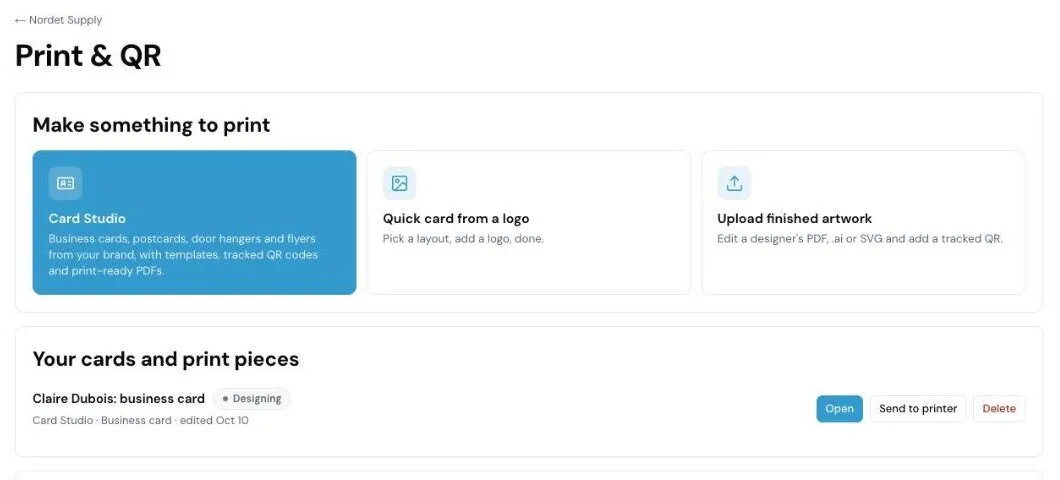
Open Print & QR
Section titled “Open Print & QR”- Sign in at insights.webfacemedia.com and open your site’s dashboard.
- Choose Print & QR: cards, QR codes, logo check under the site name.
The page has four parts, from top to bottom: Make something to print, Your cards and print pieces, QR codes and Tools.
Make something to print
Section titled “Make something to print”Pick one of three tiles to start.
| Tile | Use it when |
|---|---|
| Card Studio | You want to design a business card, postcard, door hanger or flyer yourself, for you or someone on your team: templates, text, shapes, images, tracked QR codes and a print-ready PDF. See Designing in Card Studio and Postcards, door hangers and flyers. |
| Quick card from a logo | You want a business card fast: pick a layout, add a logo and the details, and download. |
| Upload finished artwork | A designer already made the card. Upload their PDF, Illustrator (.ai) or SVG file to change the text and add a tracked QR code. |
Quick card from a logo
Section titled “Quick card from a logo”- Choose Quick card from a logo.
- Choose Start from the brand kit if your site has one, or Choose a logo to start from a logo file. SVG or PDF prints sharpest.
- Fill in the details: name, title, phone, email, website, and optionally an address and tagline.
- Under Look, set the Brand colour, Text colour and Background colour. The background colour fills the coloured areas of the card. It starts as your brand colour; choose Use the brand colour for the background again to match them again.
- Choose Download print file (PDF).
To make cards for the whole team, paste one line per person under Team cards (Name, Title, Phone, Email) and choose Download team cards. Everyone gets the same design with their details.
To move a quick card into the full editor, choose Open in Card Studio. Card Studio opens a copy; the quick card stays as it is.
Upload finished artwork
Section titled “Upload finished artwork”- Choose Upload finished artwork and pick the designer’s file (PDF, .ai or SVG).
- Change the text if you need to, and add a tracked QR code.
- Download the print-ready PDF.
Your cards and print pieces
Section titled “Your cards and print pieces”Everything you start shows up in Your cards and print pieces, newest work first. Each row shows:
-
The card’s name and where it is up to:
Status Meaning Designing Still being worked on, or changes were asked for. Proof sent A proof is waiting for an answer. Approved The proof was approved. Sent to press The print file went to the printer. -
How it was made and when it was last edited. Card Studio work shows its format, for example “Card Studio · Business card” or “Card Studio · Door hanger”. Quick cards show “Quick card”, and uploads show the file’s name.
The buttons on each row:
- Open opens the card where it was made.
- Send to printer (Card Studio work, Admins only) opens the card with the printer form ready.
- Card Studio (quick cards and uploads) opens a copy in Card Studio. The original stays as it is.
- Delete removes the card and its artwork. You are asked to confirm first.
Cards for your team
Section titled “Cards for your team”In Card Studio, choose Someone on our team when it asks Whose card is this? and enter their name (job title, email and phone are optional). The card uses your brand with their details. See Start a card.
For a quick card, paste the team under Team cards (see Quick card from a logo).
QR codes
Section titled “QR codes”Each QR code holds a short link that counts scans and then sends people on to the page you choose.
- Under QR codes, enter a Name, for example “Business card”.
- Under Sends people to, enter the page the QR code should open.
- Choose Add QR code.
For each code you see scans for the last 7 days, the last 30 days and all time. You can:
- Choose change to send the code somewhere new. The printed code stays the same.
- Download the code as an SVG or PDF.
- Choose Hide to take it off the list. The printed code still works.
Codes marked Contact card save a person’s details to the phone’s contacts when scanned. You make those in Card Studio or a quick card.
Scans show here and in your Monday email.
Tools sits at the bottom of the page. Each tool is closed until you open it.
Logo check
Section titled “Logo check”Use this before you send a logo to a printer.
- Open Logo check and choose Choose a logo.
- Under Printed at, pick the size, for example a business card (about 1 in wide).
- Read the result: Ready to print, Printable, with things to know, or Not ready to print yet.
Nothing is saved. The check only looks at the file you give it.
Approvals and print orders
Section titled “Approvals and print orders”Open Approvals and print orders to see what clients approved and what went to the printer.
- Approvals: each proof, its status (Approved, Changes asked or Waiting) and when it was sent.
- Print orders: each printer, the order and when it was sent.
Who can send
Section titled “Who can send”| Admin | Member | |
|---|---|---|
| Design cards and print pieces, check logos, make QR codes | Yes | Yes |
| Download the print PDF | Yes | Yes |
| Make a proof link to share yourself | Yes | Yes |
| Email a proof to a client | Yes | No |
| Send to the printer, save a printer | Yes | No |
A Member who tries to send sees “Only an Admin can send to the printer or email a proof. Ask them to send it.” See Your team and sign-in for the roles.