

Editing pages
This page helps you find a page in your website editor, change it, and publish the change.
You can also ask Claude, ChatGPT or your webfaCe Desk to make a change for you, such as a new phone number or an extra FAQ. See Let it make the edit for you.
Your website editor is at yoursite/admin, for example yourbusiness.com/admin. If you cannot sign in, see Getting access.
Find your way around
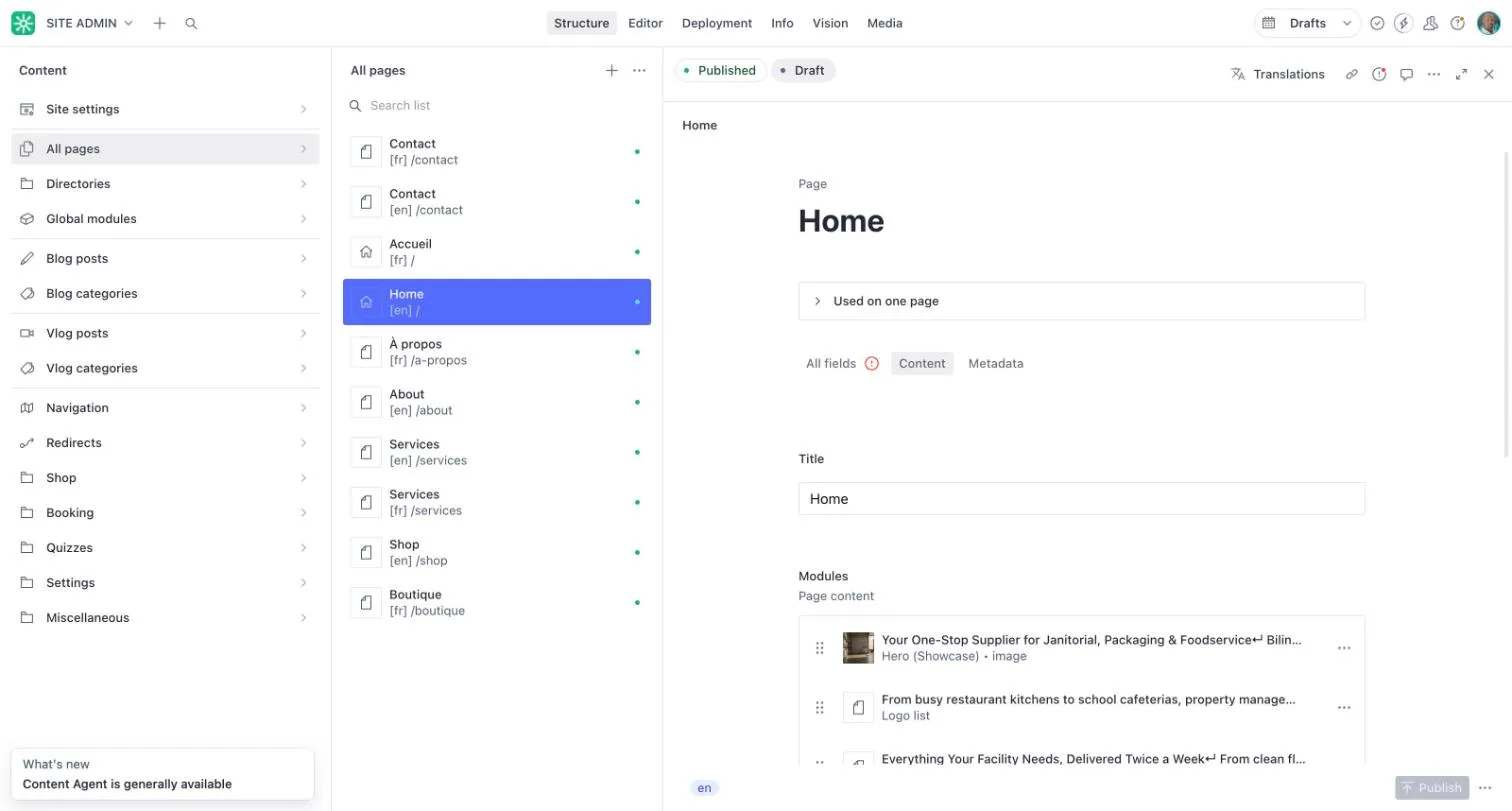
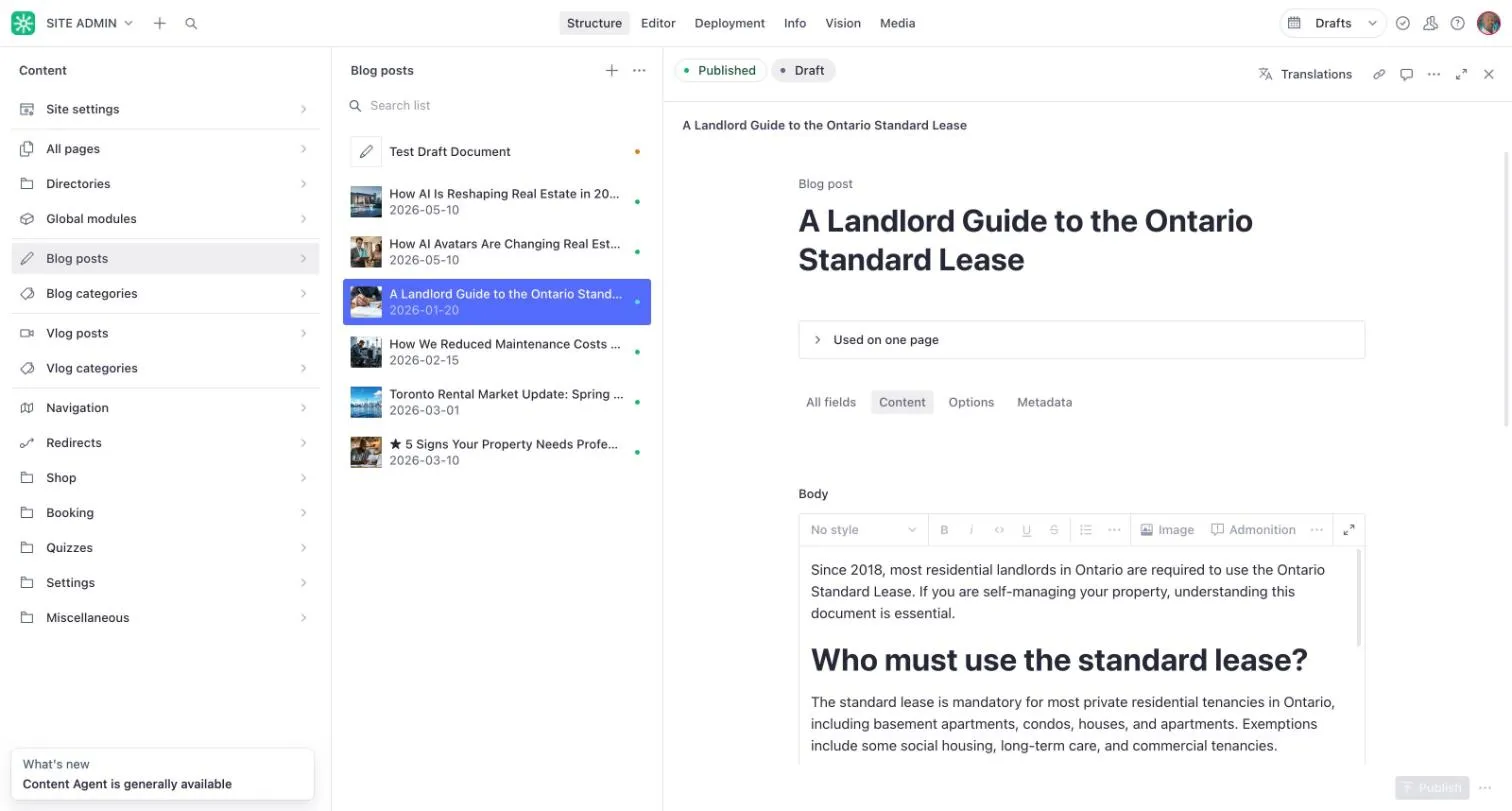
Section titled “Find your way around”The Structure view lists everything on your site:
- Site settings
- All pages
- Directories
- Global modules (sections shared across pages)
- Blog posts and Blog categories, Vlog posts and Vlog categories
- Navigation (your menus)
- Redirects
- Shop
- Booking
- Quizzes
Some sites do not use every item.
Edit a page in Structure
Section titled “Edit a page in Structure”- Open All pages and choose the page.
- Change the title or open a section under Modules to change its content.
- Your changes are saved as a draft. Nothing changes on the live site yet.
Work with sections (modules)
Section titled “Work with sections (modules)”A page is built from sections called modules: a hero at the top, lists of services, stats, testimonials, a call to action and so on. They appear in order under Modules.
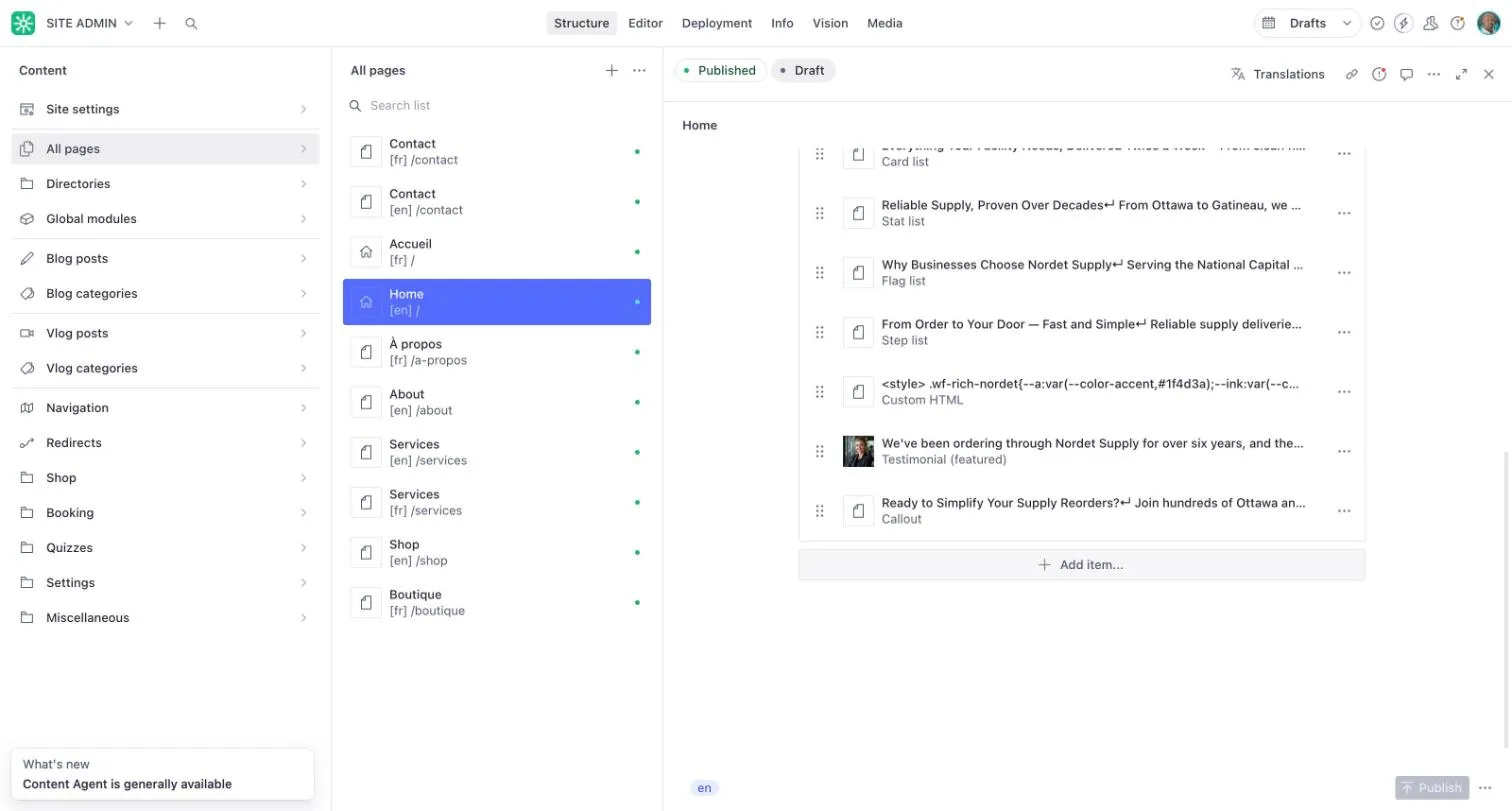
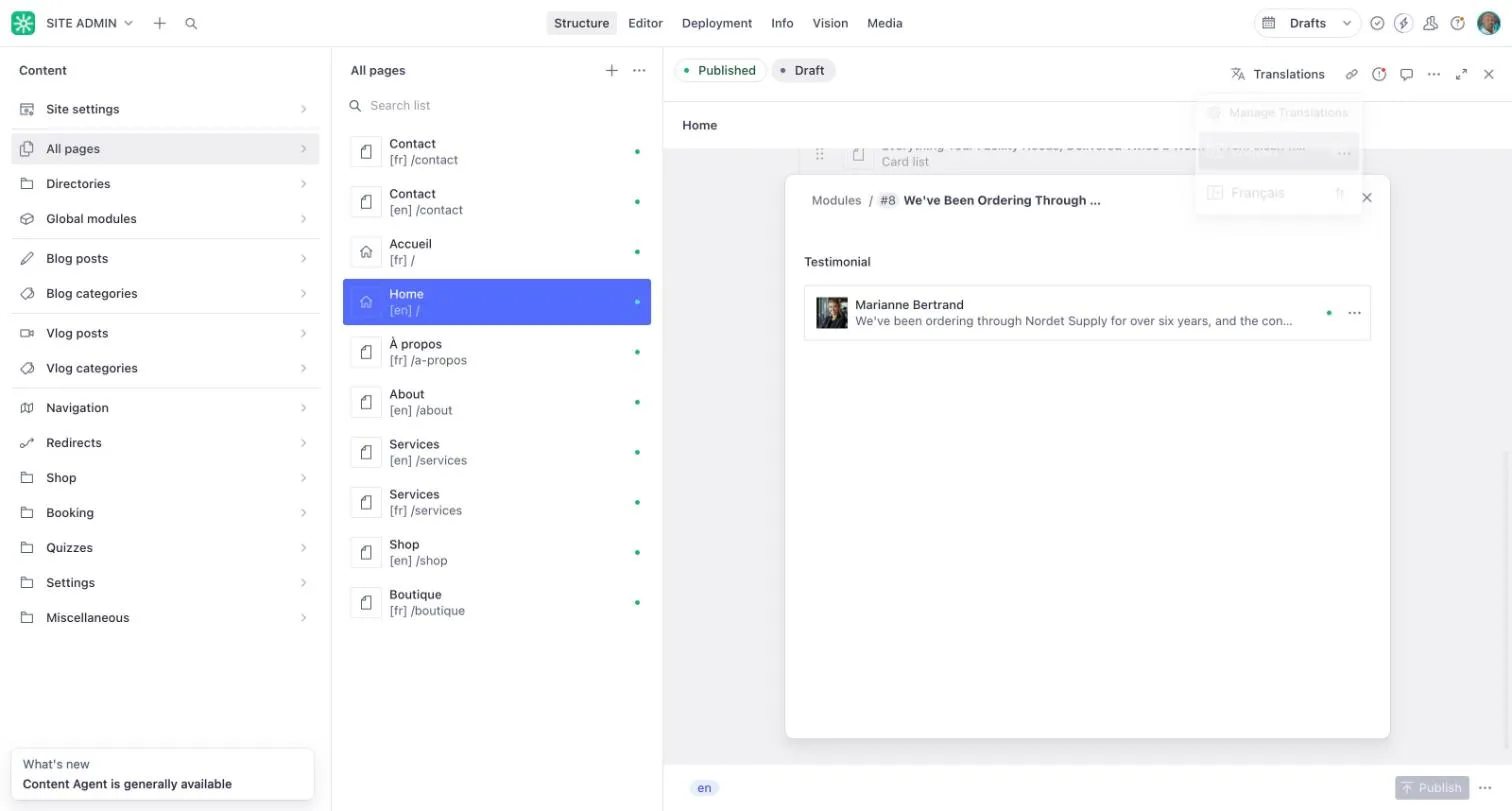
- Change a section: click it to open it, then edit its fields.
- Move a section: drag it by the handle on its left.
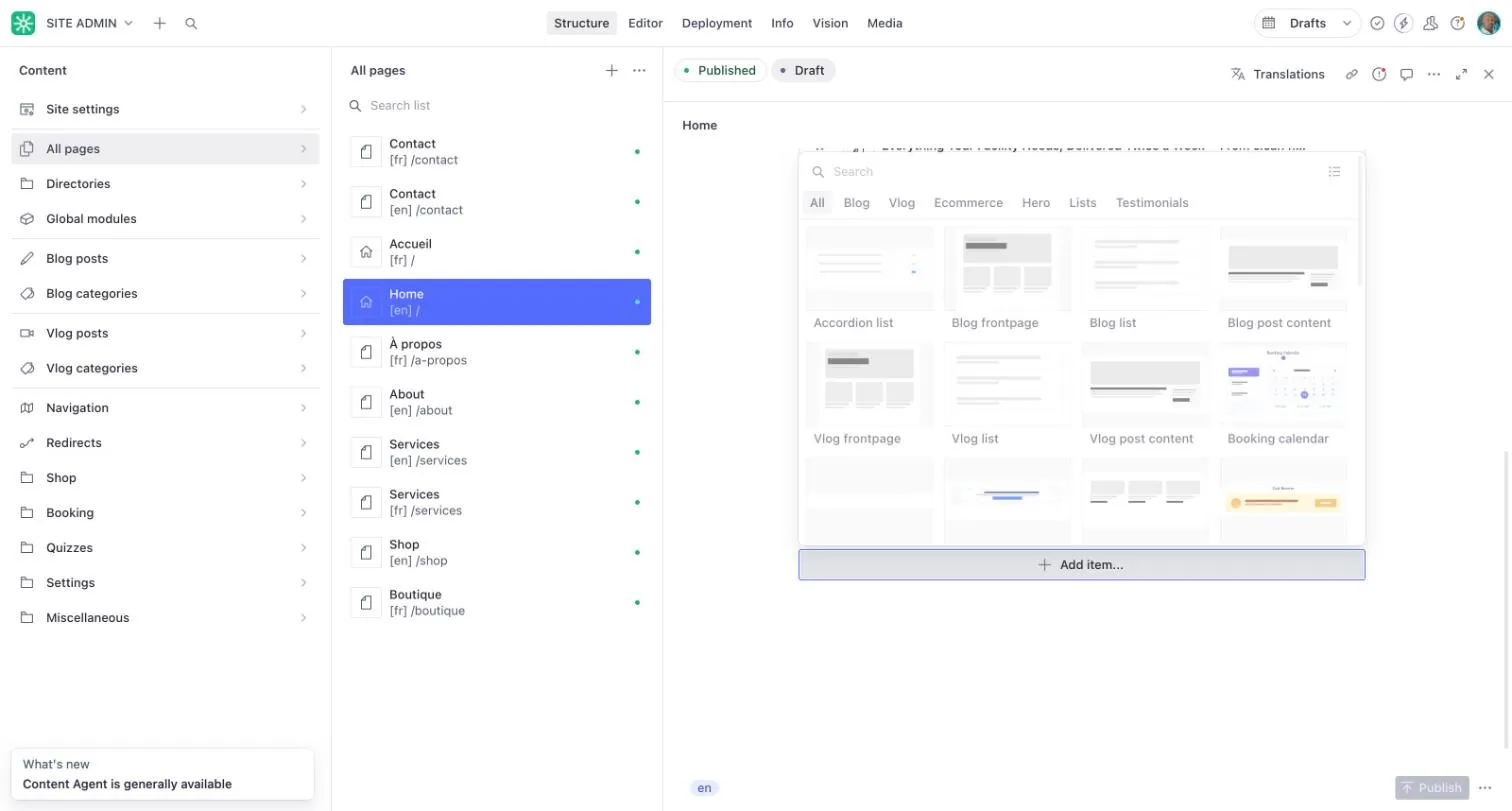
- Add a section: choose Add item… at the bottom of the list and pick a type. Use the tabs or the search box to find one.
Edit on the live page
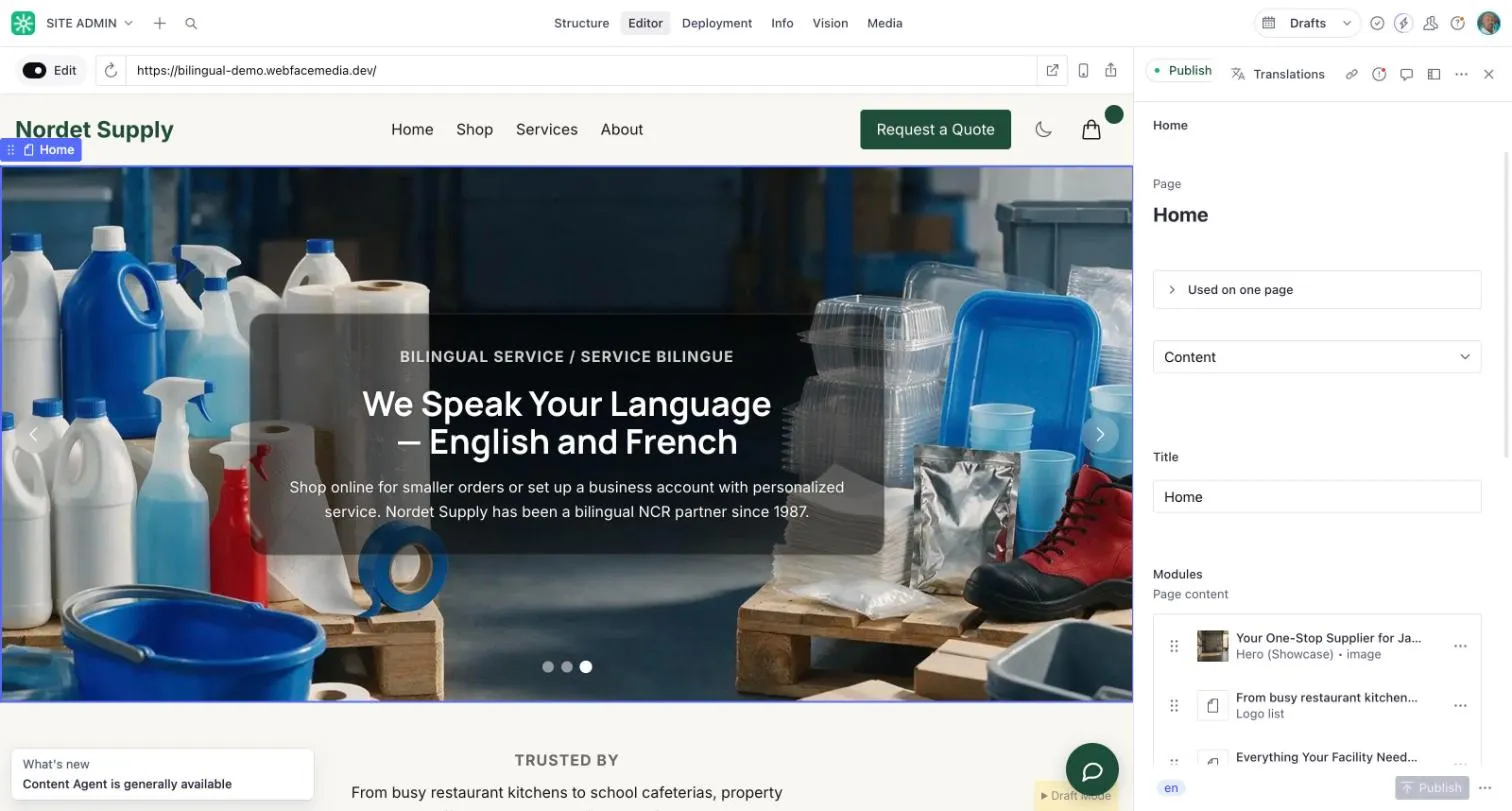
Section titled “Edit on the live page”The visual editor shows your site as visitors see it, with the editing panel beside it.
- Open Editor at the top.
- Click on the part of the page you want to change.
- Make the change in the panel on the right.
Menus, site settings and images
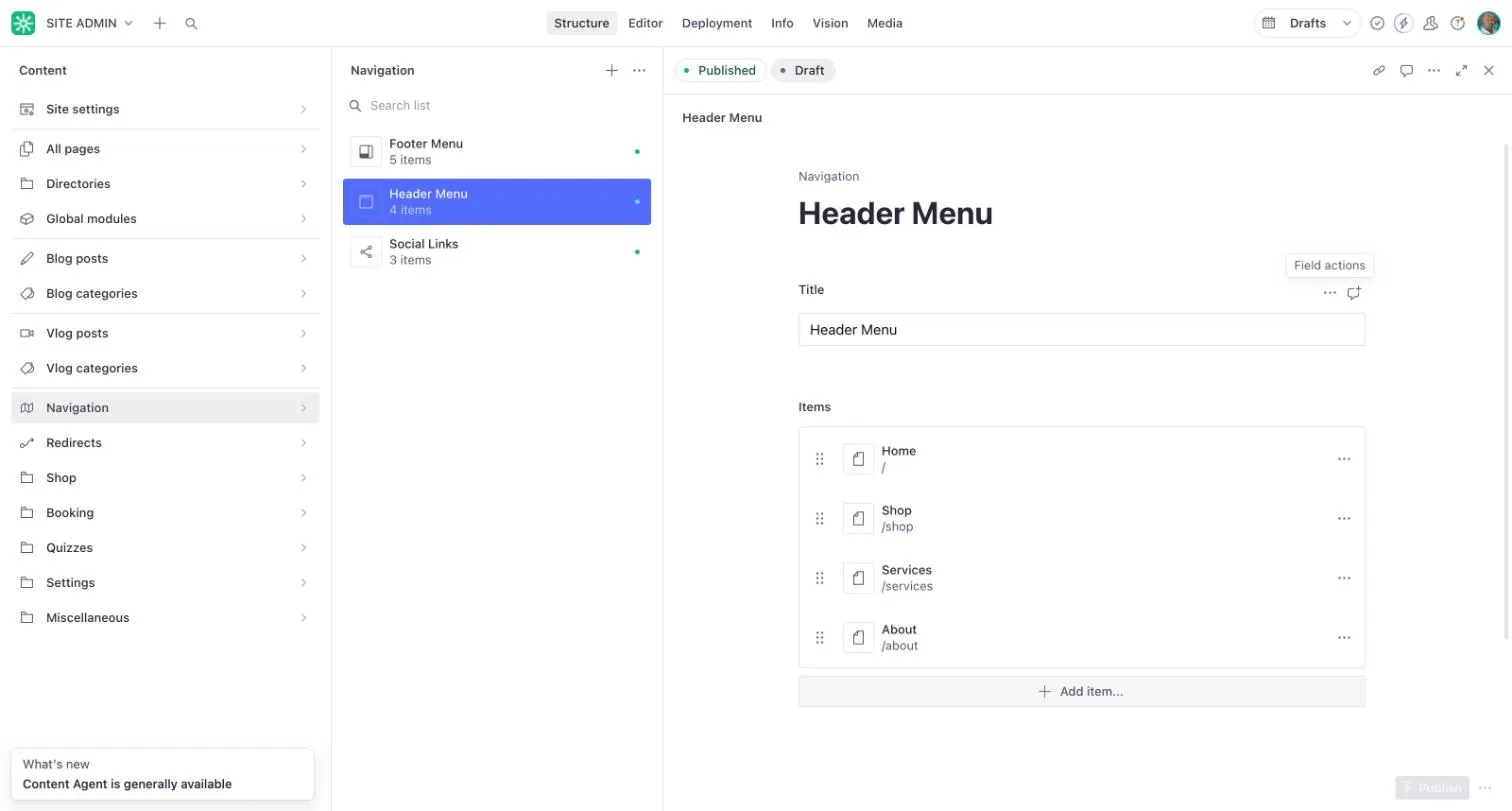
Section titled “Menus, site settings and images”- Navigation holds your menus: the header menu, footer menu and social links. Open a menu to add, remove or reorder its items.
- Site settings holds what appears on every page, such as your business name and the short text in the footer. Take care here: a change in Site settings affects every page at once, and some settings there can break the whole site. If you are not sure about a setting, leave it and contact support@webfacemedia.com.
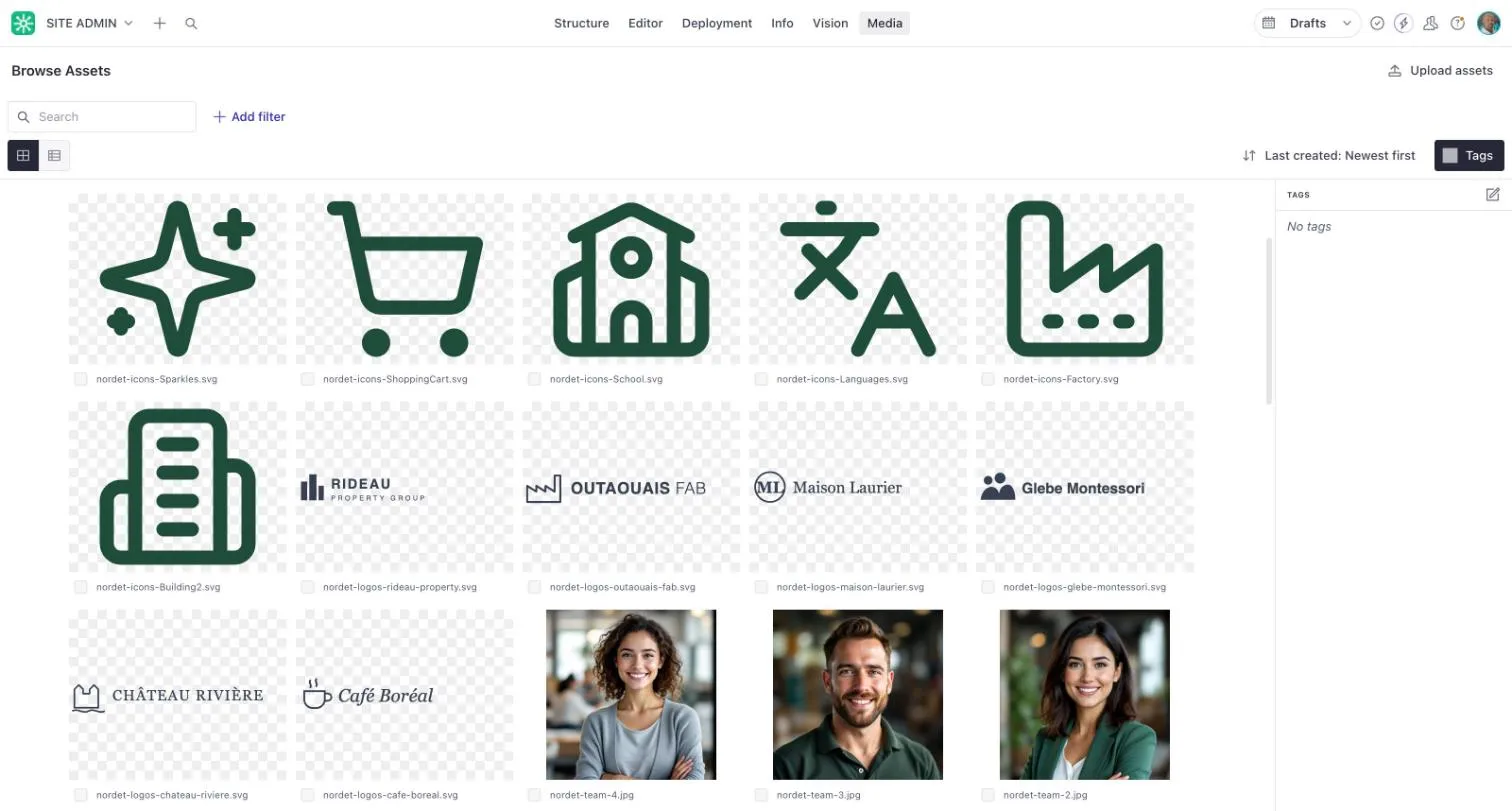
- Media at the top lists every image and file on your site. Use Upload assets to add new ones.
Blog posts
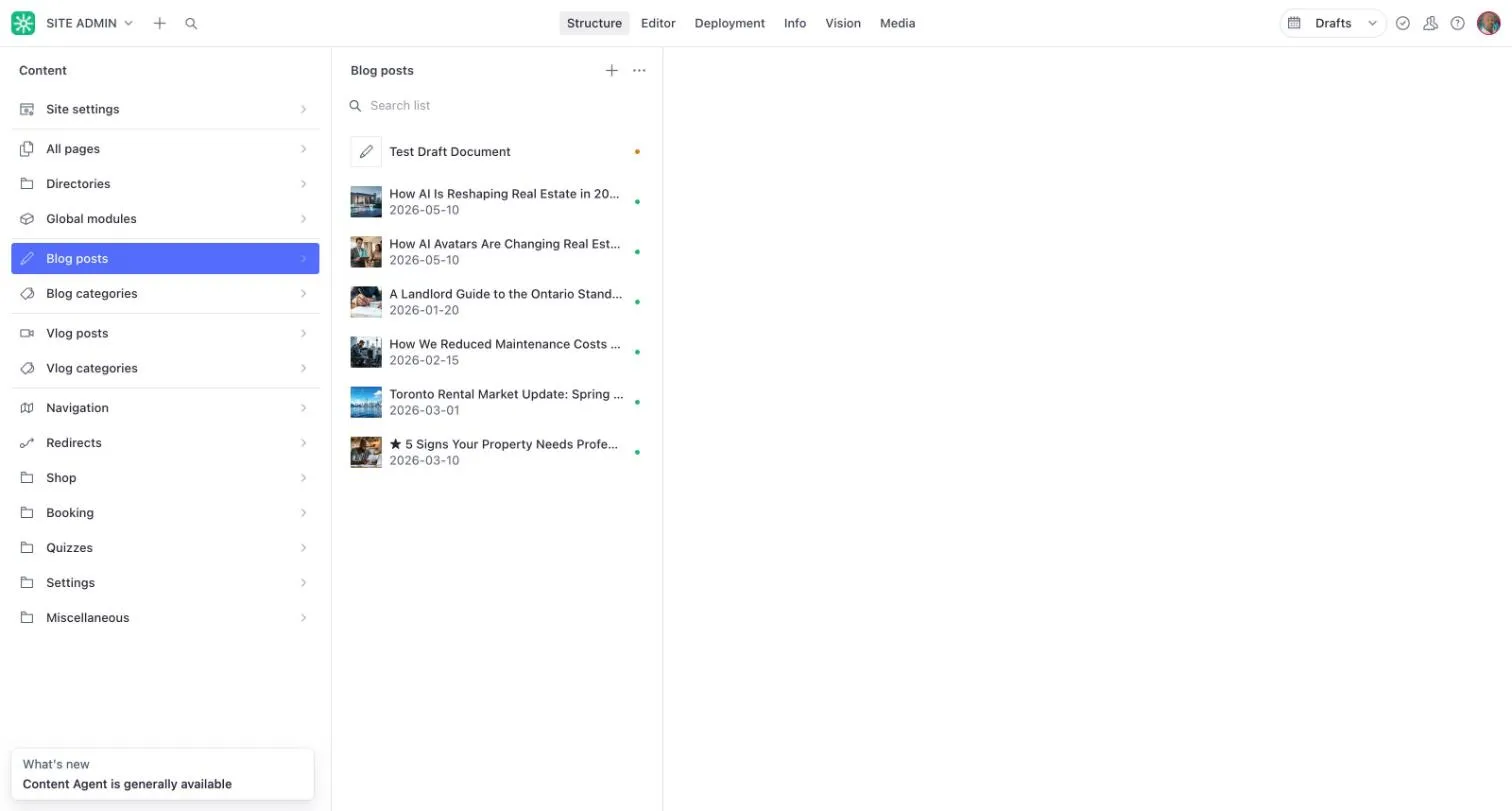
Section titled “Blog posts”Open Blog posts to see every article, newest first. Choose one to edit it, or the + at the top of the list to start a new one. The Body field works like a word processor: headings, bold, lists, links and images.
Publish
Section titled “Publish”When the page looks right, choose Publish. Your change goes live on your site.
If you are not ready, leave it. Drafts stay in the editor until you publish them.