

Your Getting started page
When your website is ready, we send you a link to your Getting started page. It lists everything in your plan, in the order to set it up, and checks each item every time you open it.
The address looks like app.webfacemedia.com/planner/onboarding/<your business>. Save the email we sent, or bookmark the page.
Open it
Section titled “Open it”- Open the link from our email.
- If you are not signed in, you see Welcome to webfaCeMEdia. Press Sign in and use your webfaCeMEdia account (the one you use for Insights).
- You come straight back to your Getting started page.
Sign in to the planner first. If you open one of the other products before you have signed in, it can ask for a password you do not have.
If the page says it belongs to another account, you are signed in with a different email. Sign out, then sign in with the email we sent the link to.
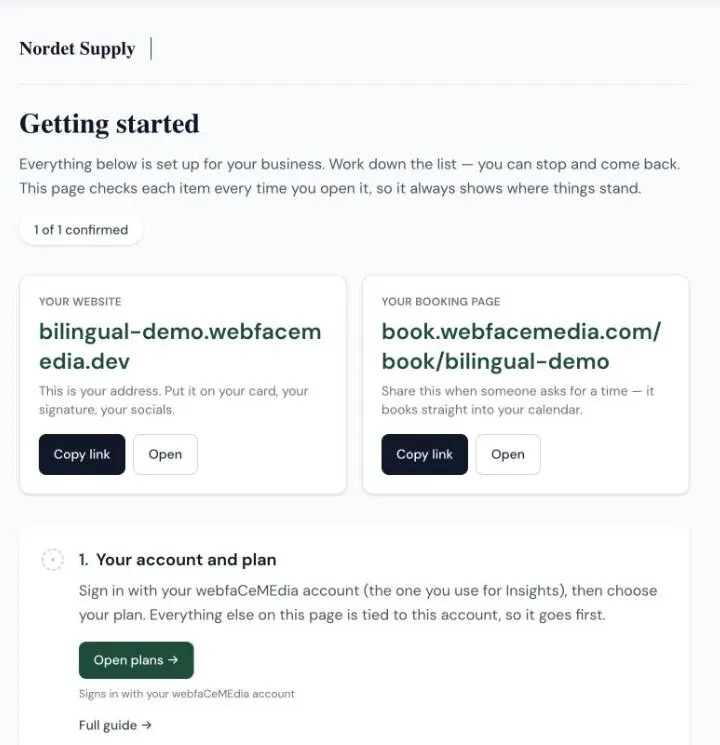
At the top:
- Your website and Your booking page, each with Copy link and Open.
- N of N confirmed: how many of the items the page can check are done.
Work down the list
Section titled “Work down the list”Each step has a mark on the left:
| Mark | Meaning |
|---|---|
| Green tick | Done. The page checked it. |
| Empty circle | Not done yet. The page checks it again when you come back. |
| Dashed circle | You do this one. The page cannot check it for you. |
You can stop at any step and come back later.
What each button opens, and how it signs you in
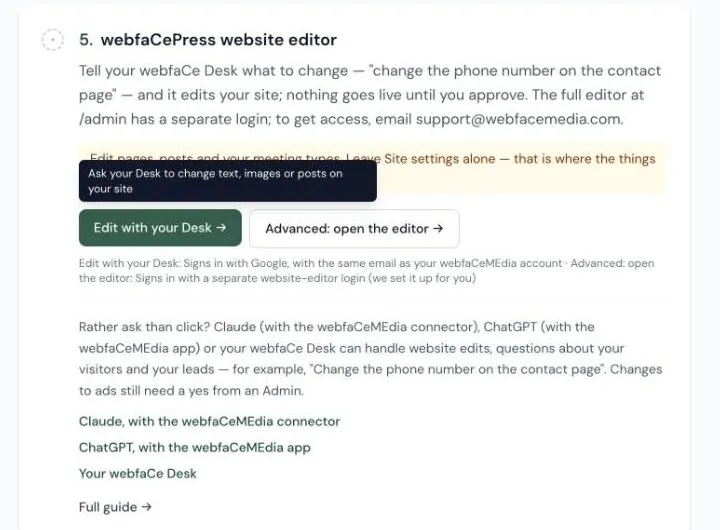
Section titled “What each button opens, and how it signs you in”Hover over a button (or tab to it) to see what it opens. Under each button, a line says which sign-in it asks for, so you know before you click.
| Step | Signs in with |
|---|---|
| Your account and plan | Your webfaCeMEdia account |
| Your team (Insights) | Your webfaCeMEdia account |
| Your Agent | The same email as your webfaCeMEdia account |
| webfaCe Bookings | The Google account whose calendar you use |
| webfaCe Desk | Google, with the same email as your webfaCeMEdia account |
| Your website editor | A separate website-editor login (we set it up for you) |
| Insights and the mobile app | Your webfaCeMEdia account |
Your webfaCeMEdia account is the same everywhere: Insights, the mobile app, webfaCe Inbox, the Claude connector and the planner. Each of them asks you to sign in once, with that same account.
webfaCe Desk
Section titled “webfaCe Desk”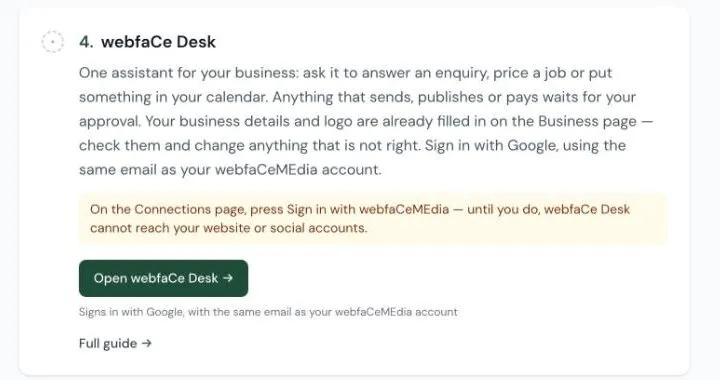
- Press Open webfaCe Desk and sign in with Google, using the same email as your webfaCeMEdia account.
- Open Connections and press Sign in with webfaCeMEdia. If you are asked which company, choose yours.
Until you do step 2, your Desk cannot reach your website or social accounts. See What the Desk does.
Change your website
Section titled “Change your website”If your plan includes webfaCe Desk, the easiest way to change your website is to ask your Desk. Press Edit with your Desk and say what to change, for example “Change the phone number on the contact page”. Nothing goes live until you approve it.
The full editor is there too, under Advanced: open the editor. It is on your website at /admin and has a separate login. To get access, email support@webfacemedia.com. See Getting access.
You can also ask Claude (with the webfaCeMEdia connector) or ChatGPT (with the webfaCeMEdia app). See Claude & ChatGPT.
Stuck?
Section titled “Stuck?”Email support@webfacemedia.com or call 647.286.5045. Tell us which step you are on.