

webfaCe Studio
webfaCe Studio is a webfaCeMEdia lab project: it tests how far open image, video and music models go on hardware a studio controls, and brings that kind of production within reach of local setups. It is separate from the websites, agents and marketing we run for clients. The engine changes as better open models come out, results vary from shot to shot, and feedback is welcome at contact@webfacemedia.com.
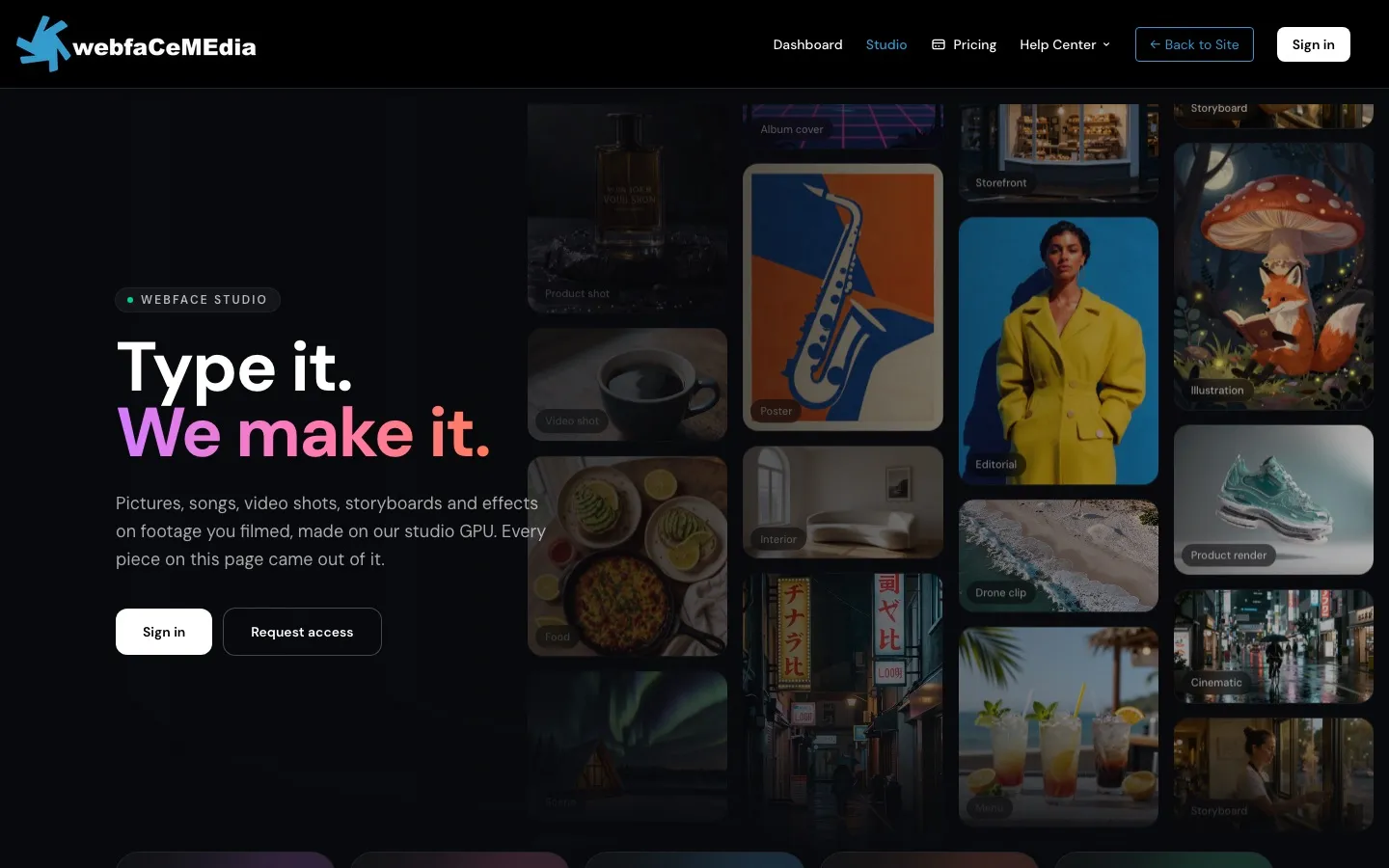
In Studio you make pictures, songs and video for your website, ads and social posts. Open it from Studio in the planner menu, or go to app.webfacemedia.com/planner/studio.
Who can use it
Section titled “Who can use it”Everyone in a client company’s account gets Studio with their planner sign-in, at no extra cost, and so does every paid planner plan. Anyone else can use Request access on the Studio page.
What you can make
Section titled “What you can make”
- Picture — photos, posters, products and portraits from a sentence, or from a photo of you.
- Song — a full song with vocals in any genre. Write the words, or let us draft them. For an instrumental, leave the words out or write “no vocals” in the style.
- Video shot — bring any picture to life: say what moves and how the camera goes.
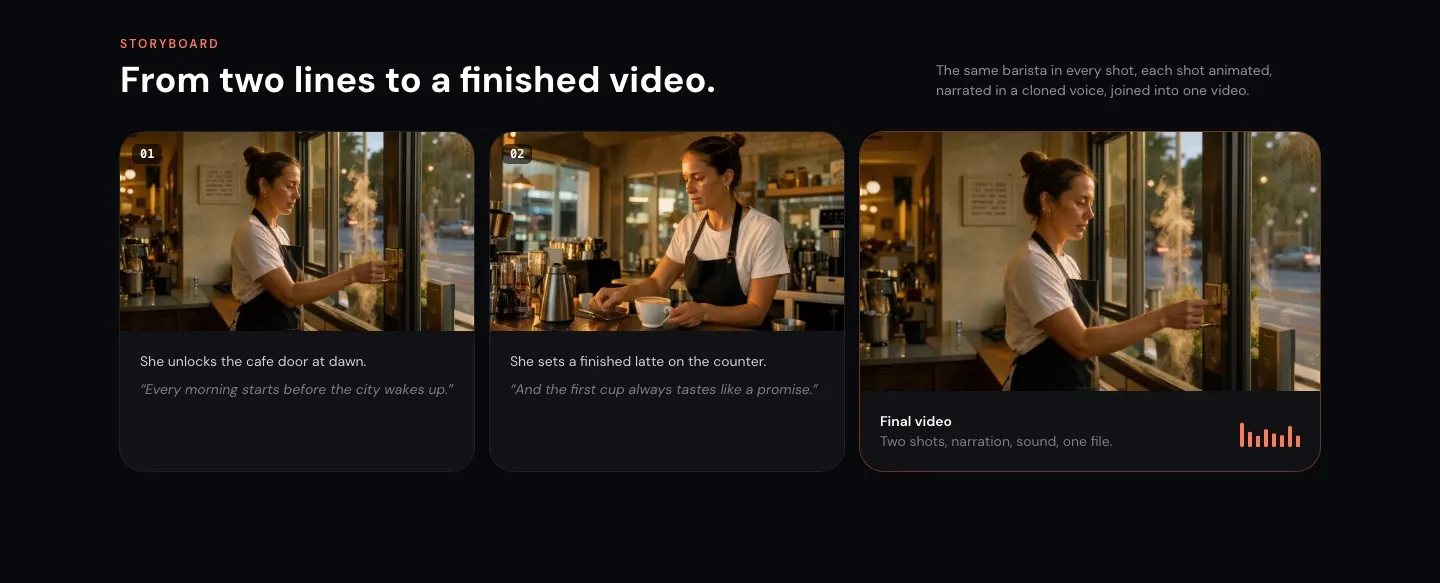
- Storyboard — shot by shot, with the same people throughout, narrated, and cut into one video.
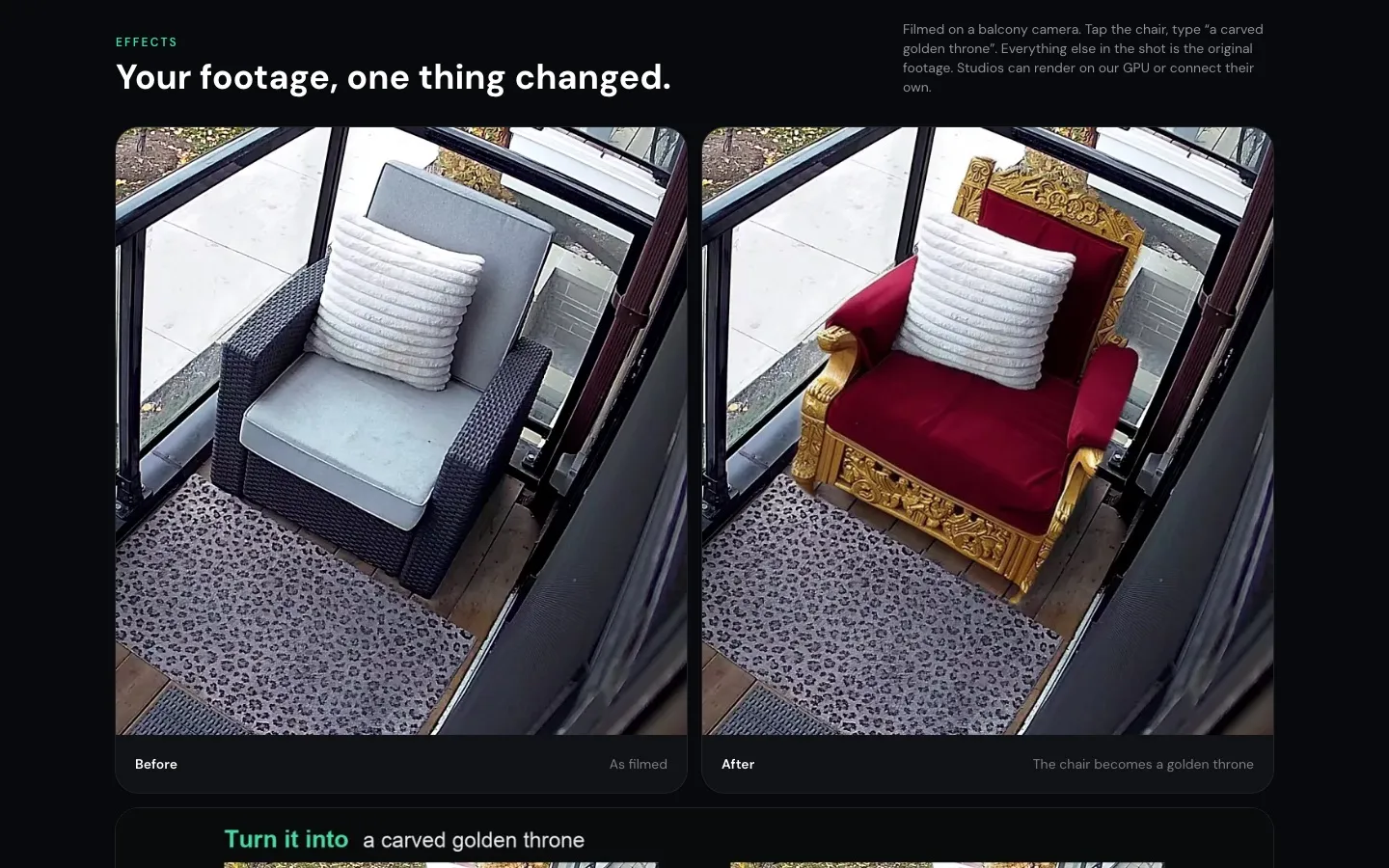
- Effects — change one thing in footage you filmed. Tap it and say what it becomes; the rest stays as you shot it.
- Music video — start from a song you made in Studio or one you upload, add the words, and Studio cuts it into shots on the beat.
Effects on your footage
Section titled “Effects on your footage”Upload a short clip, tap the thing you want to change, and choose what happens to it:
- Turn it into — it becomes something else (a chair becomes a golden throne).
- Replace — swap it for something new.
- Remove — take it out of the shot.
- Add — put something new into the shot.
Storyboards
Section titled “Storyboards”Write a line or two for each shot. Studio makes a picture for every shot, animates them, adds the narration or the spoken lines, and joins them into one video. To get sign-off, choose Share for review: the link works for 14 days, and the person you send it to can approve each shot or leave a note.
Change a storyboard after it is made
Section titled “Change a storyboard after it is made”Every shot has controls under it, numbered by its place in the film:
- Earlier and Later move the shot one place.
- Add a shot after draws a new shot there. Add a shot at the end is under the last shot. A storyboard holds up to 24 shots.
- Edit narrator line changes the words. Only that line is recorded again; the picture stays as it is.
- Remove takes the shot out of the film.
Under Music, Use one of my songs puts a song you made in Studio under the film in place of a new instrumental. In Made here, Add to a storyboard on a picture adds it as the last shot of the storyboard you pick.
After any change, choose Rebuild the video for a new cut. Music videos follow their song, so their shots cannot be added, removed or moved.
A film from a script
Section titled “A film from a script”Choose Film from a script, give it a title and paste a film or TV script (or Open a script file for a text or Fountain file). Read the script costs nothing: Studio cuts the script into its scenes at the scene headings (INT. / EXT.), finds the people who speak, and lists both under Films. A treatment or plain prose with no scene headings is cut into parts.
- People whose names match your saved characters use that face, look and voice in every scene. The others are described from the script.
- Everyone who speaks gets a voice that fits their description (age, man or woman, British or American), and no two people share one. The film card shows who has which voice. A saved character uses the voice saved with them.
- Directions in brackets in the script, such as (quietly) or (shouting), are never spoken. They set how the line is paced and how the character’s face plays it.
- Develop this scene turns one scene into its storyboard. It is broken into shots that run from 3 to 10 seconds depending on what happens in them, with the script’s lines word for word. Develop the next 3 scenes does three at once.
- Open the storyboard takes you to the scene. Everything a storyboard can do works there: redo a picture, change a face, animate, and make the scene’s video.
- Make the film joins every scene that has a finished video, in order, into one film you can download.
A long script is many scenes, and every scene you develop counts its pictures and clips toward your monthly allowance, so develop the scenes you need.
Sharpen a video
Section titled “Sharpen a video”Sharpen on a video in Made here makes a second copy at 1080p and 48 frames a second. It takes several minutes and counts as one video shot.
Ask Studio
Section titled “Ask Studio”Ask Studio, at the bottom right of the page, opens the Studio assistant. Say what you want and it does it: a picture, a song, a whole storyboard, or a change to one you have (“add a closing shot of the sign”, “make shot 3 at night”, “put my song under it”).
- It sees your storyboards, finished work, photos and voices, and which storyboard you have open, so “this film” means the one on your screen.
- It moves the page for you: it opens the storyboard it changed and scrolls to the shot.
- It asks before it deletes anything or starts a large job, and shows how much of your month the job uses.
- Tell it to remember something (“remember that I always want vertical video”) and it does, in every later conversation and on every device. Remembers at the top of the panel lists those notes, each with a button to remove it. New chat starts a fresh conversation and leaves the notes in place.
- If you would rather adjust by hand, ask for a draft: it fills in the form and you press the button.
Talk an idea through, and reuse your characters
Section titled “Talk an idea through, and reuse your characters”You do not have to arrive with a finished plan. Describe a film, a series or a person you have in mind and work it out in conversation; it starts drawing when you say so.
- It knows your saved characters by name. “Put Zuri in a market at dusk” draws Zuri with the same face as last time, and a storyboard that names a saved character brings their face, look and voice with it.
- To create someone new you will want again (a host, a mascot, the face of your posts), ask for a portrait. When you like one, say “save her as Zuri”. From then on every picture and film can use her.
- “Save Maya from this film” saves a character from a storyboard, with the face angles drawn there.
- The Characters section of the Studio page lists every saved character on a card: the front, three-quarter and side views of their face, their look, their voice, and the storyboards and films they are in.
- A view that has not been drawn is an empty slot with Draw. Open a view to draw it again, or type what to change and choose Redraw with this. A new front turns the side views again.
- New character makes one from a name and a description, with or without a photo. Make a picture and Put in a storyboard start from that character, and people in your storyboards who are not saved are listed underneath with Save.
- To change a character’s face, open one of the small face pictures on the storyboard, type what to change (“softer smile”, “shorter hair”) and choose Redraw with this, or tell the assistant. The side views are drawn again from the new front, and the saved character takes the new faces. Shots already drawn stay as they are until you redo their picture.
Everything it makes counts toward your monthly allowance, the same as when you press the buttons.
Monthly allowance
Section titled “Monthly allowance”Each person can make, every month:
- 200 pictures
- 60 video shots
- 20 songs
The count starts again on the 1st of each month. Need more? Get in touch.
Render on your GPU
Section titled “Render on your GPU”A production company can send all its Studio work to a machine of its choosing (a workstation, a DGX Spark or a rented cloud GPU) instead of our studio GPU. See Render Studio on your GPU for what the machine needs and the one-line install.
Studio and Creative Studio
Section titled “Studio and Creative Studio”Your Agent also has a Creative Studio for social images and video inside the Agent dashboard. webfaCe Studio is the planner’s studio, for songs, storyboards, effects and longer video.